Showing posts with label How to. Show all posts

How to create Sitemap of your Website?

What is Sitemap?

A site map (or sitemap) is a list of pages of a web site accessible to crawlers or users. It can be either a document in any form used as a planning tool for Web design, or a Web page that lists the pages on a Web site, typically organized in hierarchical fashion.
Typically, site maps are organized hierarchically, breaking down the Web site's information into increasingly specific subject areas. There are a number of different types of site maps: organizational chart site maps are quite similar in appearance to a traditional table of contents; others, based on a perspective view of the site, are like a three dimensional model with individual pages upright, like index cards, arranged in sections and linked by lines. Structured Graph Format (SGF) site maps use an XML format language to describe Web site content, and a Java SGF viewer to interact with the data. There are a number of companies making site mapping products; generally, these don't require Web design skills - such as HTML or XML ability - on the part of the user. Popular site mapping products include TheBrain's SiteBrain, Inxight Software's Tree Studio, IBM's Java-based Mappuccino, and Dynamic Diagram's eponymous product. Site maps can also be created using more general Web site management tools, such as Visual Web, or Microsoft's Site Analyst. 


How to create sitemap for your website ?


1).Open your website in your browser
                              

2).Type sitemap.xml after the Web address (URL)

3).then you can see the page like this ..

Share this to your groups.... #MS



How to send Files through WhatsApp ?


WhatsTools – Advanced file sharing through Whatsapp like instant messengers.You can share your files upto 1GB. 
 Via WhatsApp: 
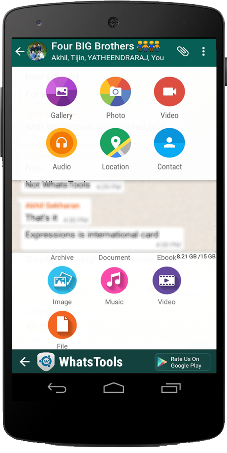
 Click on Attach button in chat window to show Whats Tools share menu. Click on the received message to open Download file popup.(We need your permission to show our menu on the click of attach button using an accessibility service)
Any File Type:
 Share any type of file Archives, Docs, EBooks, Music, Images, Gif Videos of up to 1 GB via any Instant messaging app installed in your phone.
 Up To 1GB:
 Many of the IM's have restriction on size of file sending (16MB) whereas WhatsTools allows you to send files of up to 1 GB to any of your instant messaging app's contact.
 Pausing/Resuming:
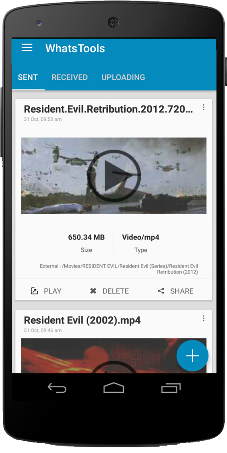
 Uploading and downloading can be paused as well as resumed. In case of a network failure, you will be able to resume the upload/download without losing the current progress.
 Preview video before downloading:  
Thumbnails of video at different durations can be previewed before downloading the actual video which will help you decide whether to download the video.
 Cross-Platform:  
Send file to IPhone, Windows Phone & Blackberry. If the receiver is on another platform, the link will be opened in the browser and the user can download file from the webpage.
Share to Anywhere:
 File sharing is not limited to SMS or IM's. You can copy the download link and share it anywhere through SMS, Email or Social Media Platforms. Anyone with the link can download the file from any platform using a browser.
Peace of mind:
 All data is guarded behind HTTPS/SSL encryption. We connect to your Google Drive™ with your permission to transfer your files. You can view & manage these files from your Google™ drive as well.
 Inbuilt Media Support:  
WhatsTools support playing of GIF and Music files within the app itself. The app has inbuilt Video player as well for common video formats.

Initial Setup

1. Enable Accessibility Service.

2. Connect to your Google™ Drive.

3. That's it. Start sharing files.
Note:-
➤ Sending virus/malicious files are against the terms of service of Google™ Drive. If file is infected, the receiver wont be able to download it.
➤App have non-intrusive ads. So no annoying pop-up and full-screen ads.

It's an *Unofficial App - they have no relationship with any Messenger apps and its related trademarks in any manner. This application is not endorsed by or affiliated with any other Instant messaging apps. Their name, trademark, and other aspects of the other apps are trademarked and owned by their respective owners.*
Kindly give your valuable feedback. Please reach at support@whatstools.com in case of any bugs.They are working hard to make your experience better. You can also get in touch throgh +91-9061641149.


How to highlight your blogger post?


Its important to post frequently in order to encourage readers to come back. Of course, the more you post, the more quickly your posts slip down into the archives, making it harder for your readers to discover everything you’ve posted that they might be interested in.

To help make it easier to showcase the posts you want your readers to see, Blogger created a new gadget called Featured Post. With Featured Post, you can choose posts you’ve shared on your blog and highlight them wherever you’d like.


How ?

Open the Layout section in your blogger dashboard then click on the add gadget 


Then you can see a pop window like the given one.


then you can see a widget named Featured post.Then click on the "+" button then another window will come out.


Then choose a name to your gadget.Then you can choose the post snippet tick on the box given.
Then you can choose the featured post by searching or choosing by label.Then save your gadget.
Then view your blog.Featured post widget should be there ☺ 

How to control Xbox one using your lumia & surface devices ?

How to control Xbox one using your lumia & surface devices ?

There’s just one thing that you need to connect your Lumia or Surface to your console: the Xbox One SmartGlass app.

http://techskull0.blogspot.com/2015/11/how-to-control-xbox-one-using-your.html
Available on both Lumia and Surface, Xbox One SmartGlass can be used for a multitude of purposes for when your Xbox One controller is powered-out or when you’re looking to catch-up on the gaming action when you’re away from your console.

As a remote

If you’re sitting in the same room as your Xbox One, you can sit back, power up your Lumia or Surface, and use the on-screen keypad to navigate around your Xbox – providing all devices are connected to the same Wi-Fi network.
Xbox One SmartGlass app with remote control functions
Find the remote icon at the bottom right corner of your screen; that’ll present you with a screen consisting of X, Y, A, and B buttons that behave in the same way they do on your Xbox One controller. You can move up, down, left, or right by swiping the screen in those directions.
Similarly, if you tap the Xbox home key you’ll jump right back to the home screen.
For those who’ve configured your Xbox One play your Cable/TV content, select the relevant tab at the top of the remote screen to see the TV guide and browse channels.
Want to watch the latest blockbuster movie? Navigate to Xbox Video on your Xbox One via your Lumia or Surface and download a film to start watching it.
Some titles open up the Xbox Video Companion feature, which brings maps, director’s comments, movie trivia, and more directly to your handheld device while you’re watching the big screen.

For the gamers

Xbox One SmartGlass app on Lumia showing gaming profile
We know how you feel: You’ve spent the past hour flipping cars off the digital hills of Los Santos in Grand Theft Auto V, or travelling to the End on Minecraft: Story Mode – Episode 1: Order of the Stone, but you have to leave the house and you still want more.
With Xbox One SmartGlass on your Lumia or Surface, you can track your achievements and see how you’re comparing against your gaming friends. You can also message them through the app to let them know (read: brag) about your latest achievement.
If you’re particularly proud of that achievement, you can also add it to your “Showcase” feed.
With Xbox One, you’ve got the ability to record game DVR clips. These happen either automatically as you perform something extraordinary within a game, or when you manually activate it.
Xbox-One-SmartGlass-on-tablet-showing-profile-and-Showcase-feature
Your own game clips can be played right on your Lumia or Surface by selecting the menu bar, then game clips. To view your friends’ clips, select “Friends”, the name of your friend, and navigate to their game clip section.

Adding pins to your Xbox One home screen

Xbox One SmartGlass on Lumia showing the Pins option
As your looking through your friends’ achievements or game clips, you may be eager to try one or two of the games for yourself.
There’s direct access to the Store within the app (menu > store) that’ll show the main gaming content, any add-ons, a leader board showing the progress of your gaming pals, images and game clips from the whole Xbox Live community.
If you’ve decided to make the purchase, or just want to check it out later, hit the “Pin” icon. The next time you switch on your Xbox One, you’ll see the game waiting for you in the Pins section.
If you’re looking for a deeper, more connected Xbox One experience, download Xbox One SmartGlass on your Surface or Lumia today.

How to add Facebook page widget into Blogger?

How to add Facebook page widget into Blogger?
The Page plugin lets you easily embed and promote any Facebook Page on your website. Just like on Facebook, your visitors can like and share the Page without having to leave your site.

Visit this website to make your page's Widget Page Plugins

And the page says like this :-)

How to add the Page Plugin to your Website

The standard configuration of the Page plugin includes only the header and a cover photo. This size is ideal for promoting your Page in a small space, such as the top of a sidebar.
<div class="fb-page" data-href="https://www.facebook.com/facebook"
  data-width="380" data-hide-cover="false" data-show-facepile="false" 
  data-show-posts="false"></div>

Adaptive Width

The plugin will by default adapt to the width of its parent container on page load (min. 180px / max.500px), useful for changing layout:
<div style="width: 190px;">
    <!-- Page plugin's width will be 190px -->
  <div class="fb-page" data-href="{url}" data-width="420"></div>
</div>
If the width of the parent element is bigger than the Page plugin's width it will maintain the value defined in data-width:
<div style="width: 600px;">
    <!-- Page plugin's width will be 500px -->
  <div class="fb-page" data-href="{url}" data-width="500"></div>
</div>
The plugin will never be smaller than 180px:
<div style="width: 100px;">
    <!-- Page plugin's width will be 180px -->
  <div class="fb-page" data-href="{url}" data-width="320"></div>
</div>
Adaptive width can be switched off by unchecking Adapt to plugin container width and the plugin will rendered at the specified width irrespective of the parent container.

No Dynamic Resizing

The Page plugin works with responsive, fluid and static layouts. You can use media queries or other methods to set the width of the parent element, yet:
  • The plugin will determine its width on page load
  • It will not react changes to the box model after page load.
If you want to adjust the plugin's width on window resize, you manually need to rerender the plugin.

Show Friend's Faces

Show who likes your Page with real people's profile images rather than just a number. People visting your Page will see a count of friends that like the Page as well as their profile photos.
This option can be activated by checking Show Friend's Faces in the configurator.
<div class="fb-page" data-href="https://www.facebook.com/imdb" 
  data-width="340" data-hide-cover="false" data-show-facepile="true"
  data-show-posts="false"></div>

List Page Posts

You can show posts from the Page's timeline in your Page plugin implementation. This is a great way to keep people up to date with what is going on on your Page.
This option can be activated by checking Show Page Posts in the configurator or adding the attributedata-show-posts="true".
<div class="fb-page" data-href="https://www.facebook.com/instagram" 
  data-width="280" data-hide-cover="false" data-show-facepile="false"
  data-show-posts="true"></div>

Privacy Restricted Pages

Some pages have audiance restrictions by age, country, etc. A warning message is shown when you attempt to configure a Facebook Page which is not visible to everyone.
Although, the warning message will only be visible while configuring the plugin here on developers.facebook.com
If a restricted Facebook Page is embedded, then:
  • Plugin will render normally as expected for those who are not restricted.
  • Plugin would not render at all for those who are restricted.

Adjust Language

You can adjust the language of the Page plugin plugin by loading a localized version of the Facebook JavaScript SDK. When you load the SDK adjust the value js.src to use your locale: Just replaceen_US with your locale, e.g. ru_RU for Russian (Russia):
Example
  js.src = "//connect.facebook.net/ru_RU/sdk.js#xfbml=1&version=v2.3";
Supported locales are referenced in the Facebook Locales XML file. You may need to adjust the width of a Social Plugin to accommodate different languages. You may find more information on ourLocalization & Translation page.

Root Adnroid device with out Computer


"Root"  is the most prominent method to access the superuser rights on the android device.There are so many methods to Root android device.But "Kingroot" makes every android user more happy,Because it can root your device in few minutes.We need to use PC to root your android device but they are older methods, Now we  have "Kingroot" to root your android device.Just download "Kingroot" app just tap on the button given then your phone is rooted.Its completely free and simple.


Why should we root our android devices?


Word "Root" means go inside or go deeper.We're commonly using our android smartphones to Chat,Capture photos,Browse internet or something else.If you're using android device for these given purposes then you don't need to root your android device.If you want super access on your android device i suggest you to root your device.Super access means you can unlock hidden features of your  phone,you will get better battery life,You can change boot animation of your android icon when you power on your device that all means you can make your android device into super device.Rooting have much benefits than its demerits like any rooting applications can't satisfy you by the guarantee of your android device.

Then we have to discuss how to root your android device using Kingroot app.


Step 1 : Download the app from google play store or download its apk by clicking the download button given below.


Step 2 : Install the app into your phone and open it.

Step 3 :Then tap on the Root button as shown in the figure below.


The rooting process has been started wait for a minute.

Step 4 :


Then your're successfully rooted your android device.
Reboot your device.Then enjoy

How to Setup 2 Step Verification on your Google Account?


It is the time to take precautions about getting hacked.In the last weekend,i think you heard that news "5 Million G-mail Accounts are Hacked and Published hacked details".
This two step verification helps you to improve your account's security.This is the best method to make  security to your account.


When you are creating  Gmail they need your phone number for security verification by texting a 6 Digit Code to the Given Phone Number or a voice call to that number.This will give maximum security to your account.
Click here >>>>>2-Step Verification


You can setup the 2 step verification from your tablet or mobile but i think your PC is more better to do this.Go to Google Security Settings and click on two step verification.Then type your mobile number and choose a way to get verification code,Text Message or Voice Call.Then Click on 'Send Code'


Then type your Code in next window.
Then Click Verify.
Then Verify your Machine whether it is computer or other devices.Then you can add devices in to it where the g-mail is using.It will alert you when your g-mail signed in any devices.
I think this is the better way to make security on your email.Ensure your security now....!

Colorize your Folder

Colorize your folder

You can now colorize your folders as in the given pic.....!!!
its a simple method to make your folder color full .
you just follow this steps

Step 1:Downloadd folder colorizer


 Step 2:open it and install it in to your PC


Step 3:Choose your folder

Right click on the folder and you can see "colorize this folder"

then your folder color will changes as you choose.
you can also choose the folder colour.
Then you can restore the original color of  your folder ass given in the picture

Or watch this video


For more


Create a shutdown program on notepad

Shutdown program,by this program you can easily shut down your PC with in the adjusted time by clicking on it.....!

type the below codes in notepad
"Shutdown -s -t 5"
7


Then save it in ".bat" format as given below..........!


Then you can see the program icon......!then click on it then your PC will show a dailog box then your PC will shut down.......


Reset BIOS Password

You can remove the  BIOS password on your PC.This menu is BIOS Password,if you tried more attempts your  system will halted and pc will shutdown.when you forget your password you can't never enter to the PC.
Then you have to unlock the BIOS Pass## ,you have to do some steps.......!

You know the hardware component "C-MOS" battery .

WAY 1

you have to format or delete the C-MOS memory to remove the password.,To clear the C MOS memory,Turn off your PC then open the cabinet replace the jumper

Then boot your PC.Again off your PC and replace the jumper ,Them your C-mos will be cleared....!
WAY 2
Remove the C-mos battery & wait for 30 seconds,after 30 seconds then place it on its correct position without any damages.
Then the BIOS password will be cleared...!

create a MATRIX Window using notepad

In this post we're going to study how to create a matrix window using notepad

Copy and Paste the below text to notepad in the format of " .bat" .


@echo off
color 02
:start
echo %random% %random% %random% %random% %random% %random% %random% %random% %random% %random%
goto start
pause

or watch this video

Create a Text Reader App using notepad


Create a program or an application that can play the voice that you entered on the textbox. You don't want to be a programmer to do this or otherwise no coding skill is required.

Here its little things you're aware of,You need to know some basic computer skills.Like how to save a file in notepad.Then you should have some doubts.
How it works? ... ?? Yeah !!! It's a VBScript Program. Before that notepad software have some In-built capabilities.Notepad is a simple text editor in windows operating system by MICROSOFT. 
Notepad is common text editor software in windows,It was introduced in mouse based MS-DOS.The resulting file basically ends with .txt extension that means text file and also it has no format tags or styles.

We can write many program in notepad and the file name changes on the basis of the programming languages that we written.Here we have VBScript is the script edition of Microsoft Visual Basic. VBScript installed by default in every system that has Microsoft Windows.VBScript must be executed with in a host environment.


How to create it  ?

Copy the below code 

Dim msg, sapimsg=InputBox("Enter your text for conversion–www.techskull.net ","TECH SKUL Text-To-Audio Converter")Set sapi=CreateObject("sapi.spvoice")sapi.Speak msg


Then Save the text in '.vbs' format


Then you can see a VBS File then open it and type your texts into it


Create a text reader quickly on your PC